

Sunday, December 31, 2006

Create a reflection in Photoshop

Very simple tutorial which I find extremely handy when you want to spruce up a creation. In this tutorial, let's take a look at how you can create realistic looking reflections using Photoshop.

Step 1: Choose a starting image

  • In my case, I chose to use a text design of PrettyBits. Other choices include landscape, buildings, and even objects.

Step 2: Duplicate your image
  • Duplicate your image by selecting Image > Duplicate.
  • Flip you duplicated image by selecting Edit > Transform > Flip Vertical.
  • Position the reflection below the original image using the Move tool or by pressing V.

Step 3: Adding a gradient to the reflection
  • Select the gradient tool and add a gradient to the reflection by drawing a line from top to bottom of the image. You should then get something like that.

Step 4: Adding perspective to the reflection
  • Select the gradient tool and add a gradient to the reflection by drawing a line from top to bottom of the image. You should then get something like that.

Step 5: Final touch
  • Make your reflection more realistic by reducing the Opacity of the layer. There is no hard and fast rule as to how much the Opacity should be, it is really up to you. Play around with the Opacity and see what works for you.

In this tutorial, I have only shown you the basics of creating a reflection. You may want to explore other types of possible reflections, like in water, horizon, mirror and even sunglasses. Armed with Photoshop and a few good photos, you'll no longer need to hope for a rainy day to capture some good photos of things reflected in water. Once you start to work with reflections, you'll never look at things quite the same way again. I'm even willing to bet that you'll also find yourself analyzing how reflections occur in nature, so you can improve on your digital versions.

Hope you enjoyed this tutorial.

Related Posts:

Read More...
Saturday, December 30, 2006

Finding Love - The Harsh Truth

Chanced upon this cute stickman video on YouTube which is a true reflection of the harsh reality of the modern society where money can easily get you just about anything you desire - quite easily.
2 main observations from the video:

  1. Money is EVERYTHING
  2. Size MATTERS
Disclaimer: Contains violent scenes. Not for the faint hearted.


Read More...

Friday, December 29, 2006

The Best Christmas Ever

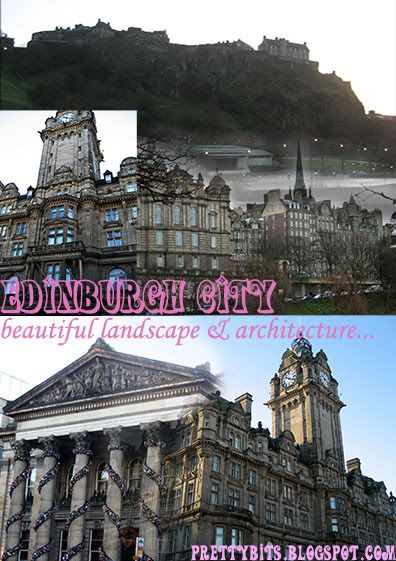
On 23 December, we made our way to Edinburgh from Aberdeen. It was, as usual, a long 2.5 hour drive for us (although the locals don’t seem to think that’s long). Well, coming from a tiny island like Singapore, where it’s only 43km across, you may be able to see my point.

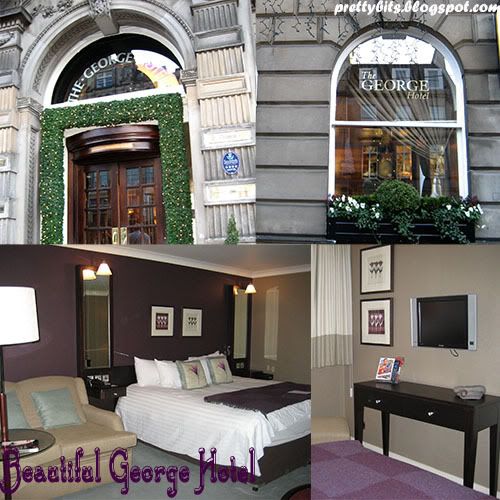
Upon arrival, we checked into the newly refurbished George Hotel, our second visit. This time around, we got a bigger room! It was lovely with a nice view to boot. Setting our bags down, we started our adventure in this beautiful city which we knew a little better now after our first visit the week before.

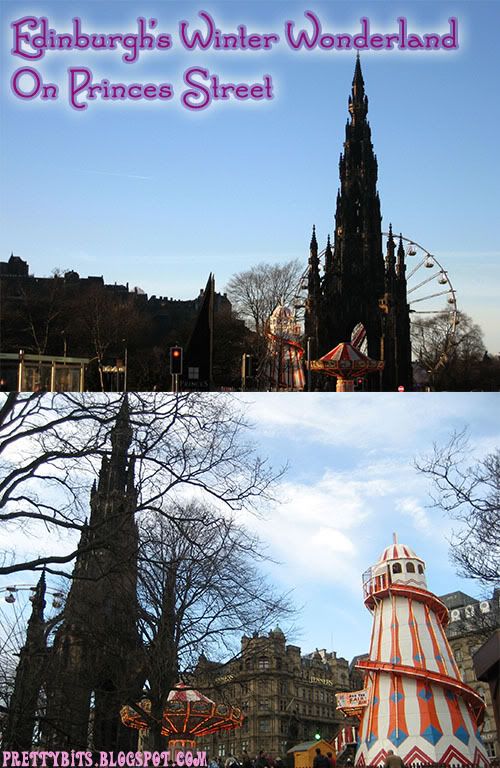
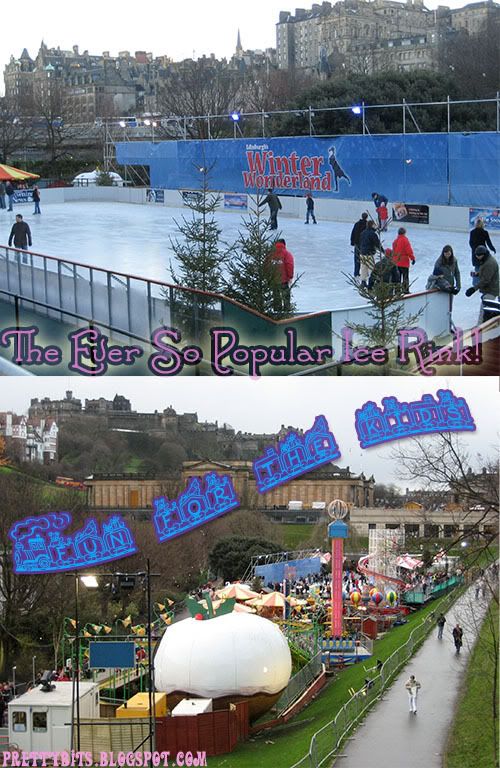
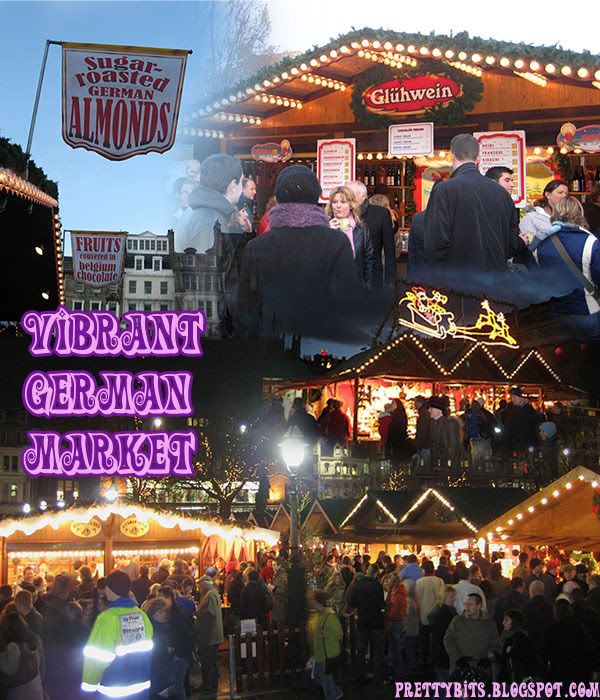
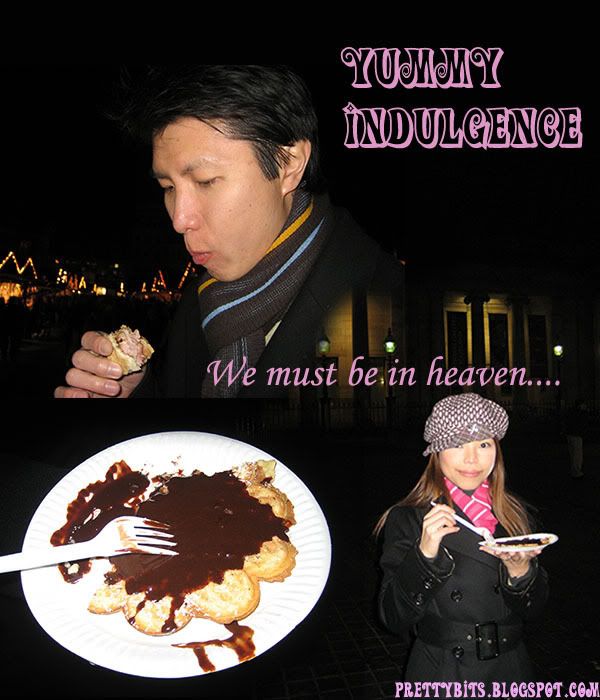
Starved after our “long” journey, our first stop was the German Market at Princes Street for the ‘steak on a roll’ and ‘hot potatoes’ that left such an indelible (and delicious) impression on us from our first visit. Standing at a cosy corner of the markets munching on a piping hot and tasty steak roll was my idea of heaven at that point. Finishing that fantastic meal with a hot cup of raspberry wine and Nutella crepe left me the most contented person on Earth that minute, I was sure.

With batteries recharged, we embarked on our trip to the Edinburgh Castle. Taking the City Sightseeing open-top bus for the second time (a wonderful way to soak in the sights on this gorgeous city), we arrived shortly at our destination. Unfortunately, visibility was poor that day, thanks to a dense fog which had enveloped the entire city. Well, as the commentary on the open-top bus offered, at least we can now say we’ve seen the Scottish mist! Nevertheless, the fog did nothing to take away the magnificence of the Castle, which we were able to see up close. We explored its every nook and cranny and also caught a glimpse of the Scottish Honours, as well as studied and took in its rich and fascinating history.

Completing our tour of the castle, we headed for the interesting Museum of Childhood, the first of its kind in the world. It was simply delightful, taking in all the wonderful toys that have enthralled generations all over the world through the ages. That done, no day could be complete without undoubtedly the best experience in the world, shopping! Zara, Topshop, Monsoon, Prada, Marks & Spencer, Accessorize were my ports of call as I rounded my day off in glamorous fashion, lugging a truck load of goodies back to my cosy hotel room.

My prized possession of the day was an Enzo Milano Curling Iron. I was told it is widely used by celebrity hairstylists in Hollywood. What do you think? Not bad eh?

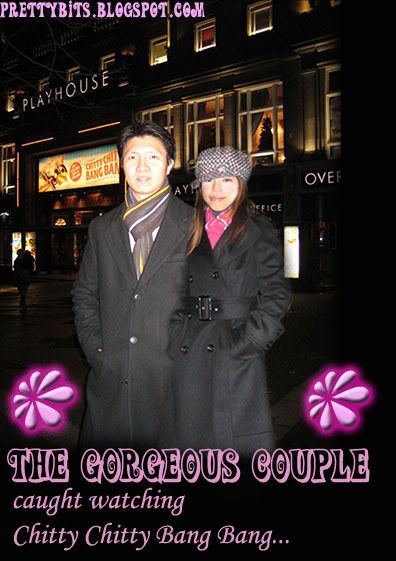
We ended our splendid Christmas with a musical - Ian Fleming's Chitty Chitty Bang Bang at the Edinburgh Playhouse. It was truly the most fantasmagorical stage musical I have ever seen. The props were extraordinary and the performance was breathtaking.

What a remarkable 4 days. Definitely a Christmas to remember, I would say.

Related posts:

Read More...

Wednesday, December 27, 2006

Belated Merry Christmas!


A very belated Merry Christmas to all!!! Apologies for the 'belated' greetings.

Just got back from Edinburgh after 4 fantabulous days of castle tour, shopping, and indulging in tons of champagne and chocolates. Most of all, had a scrumptious time digging in at all the yummy food (Mmmm.. I miss my 'Steak in a roll', 'Banana and Nutella Crepe', and 'Chocolate Waffles') at the Christmas Market and German Market.

Time for bed now. Will try and upload some pictures tomorrow.
Ciao~~


Read More...

Thursday, December 21, 2006

Blog Big Money

Having been running 3, err, 2.5 blogs for 2 weeks, I have come to realize the boundless opportunities that the Internet presents with regards to reaping substantial revenue out of nothing. In case you're interested, the 3 blogs that I currently run are Pretty Bits, Mysteria Magica, and Dogz Haven (which never really took off because I was literally buried in articles and articles about making money online 20hours a day).

Through my research, I uncovered myriad methods to put money in your pockets just by leveraging on the latest technology via the Internet. I have to admit how ignorant I have been the last couple of years. Being a Computer Science graduate (with a first class honors to be exact), I am such a pathetic noob when it comes to Internet Marketing and Business.

Sigh......

It would be difficult to find another 'make money online' idea that has changed more lives than this particular one you are about to discover. And what is even more fascinating about this particular make money online idea is the fact that it is based on a very recent trend that has proved to be more than a passing fad.

I am of course talking about the phenomenal rise of blogs. Without blogs, this 'make money online' idea would not have been possible.

For years, since the days of the rise of Amazon.com, many people have been making money from affiliate programs. Still it has always been a rather difficult thing to do mainly because setting up a web site, getting it hosted and keeping it running has always been a costly and time consuming thing to do for most.

Now, enter blogs, which are easy to set up and even easier to maintain and you have a 'make money online' idea that has taken the World Wide Web by storm.

All one needs to do is set up a free blog and simply sprinkle it with the relevant affiliate links and you could swiftly find yourself earning thousands of dollars every month, just like Darren Rowse.

This is THE 'make money online' idea that is revolutionizing the Web.

Since I spend most parts of the day researching for more ways to make money online, I decided to start another blog - Blog Big Money to provide you guys with daily snippets of my research so we can all be rich rich RICH!!

Related Post: Finally it's Done!


Read More...

Wednesday, December 20, 2006

Photoshop: Own a personalized Snow Globe

If you're eagerly waiting for the next tutorial from the "Create your own weather" series, I'm sorry but you're not getting it in this post.

With Christmas just round the corner, I've decided to give you a real treat!


Recently caught the typical Tim Allen flick Santa Claus 3: The Escape Claus. Err.. I'm not gonna go into details of the movie, like I said, it's just the typical Tim Allen movie. If you saw the movie, you would remember a scene when Santa gave Lucy a magical snow globe showing her hugging a snowman. That was just Sweeeet!! Damn, wish Santa would give me a personalized snow globe... Yah yah.. We adults should never believe in Santa. Soooo.. I've decided to take matters into my own hands and make my own DIGITAL SNOW GLOBE!


***Warning***
(1) Insane number of photos, so be patient!!!
(2) Freaking long tutorial, so be patient!!!
(3) Be patient!!! I promise it's worth it!!!

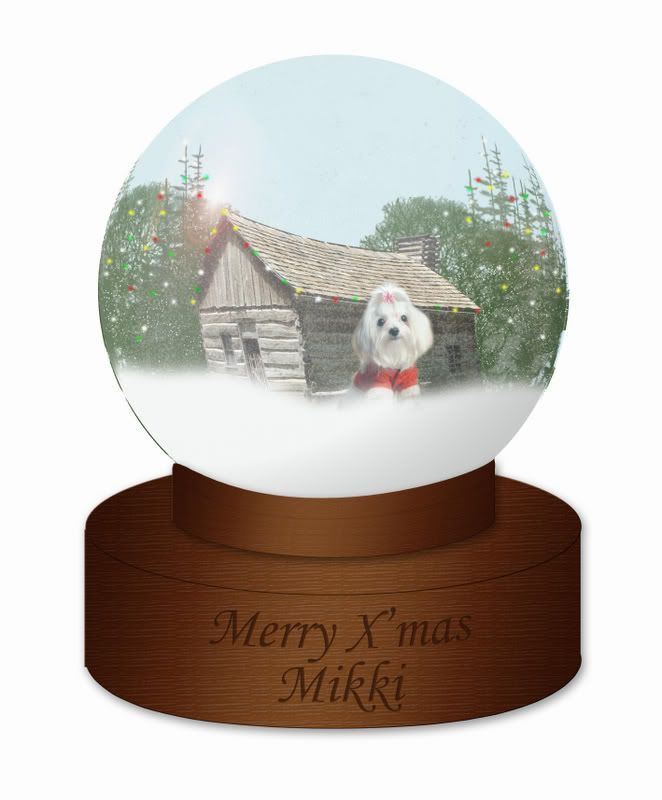
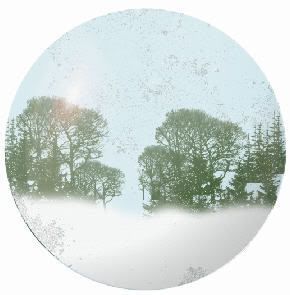
Instead of making a Snow Globe for myself, I've made one for the love of my life - Mikki. Gawd! I miss her So very much.. Haven't seen her since I've moved to UK 2 months back. Okok.. I know you're excited. I shall not digress. To entice you to stay and learn to make your own snow globe, I shall first show you the end result..

***VIOLA***
So, what do you think? Still interested? Here we go...

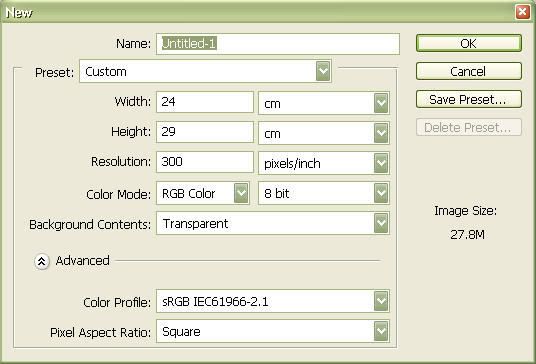
Step 1: Create a new document
  • Create a new document with the settings as shown.
  • Select "white" as your foreground color and fill the background with "white".

Step 2: Create and fill your marquee
  • Create a new layer and then choose the Elliptical Marquee Tool.
  • In the Style drop-down menu in the Options bar, choose "Fixed Size".
  • Enter the settings as shown.

  • Click in the new layer for a marquee of the defined dimensions to appear.
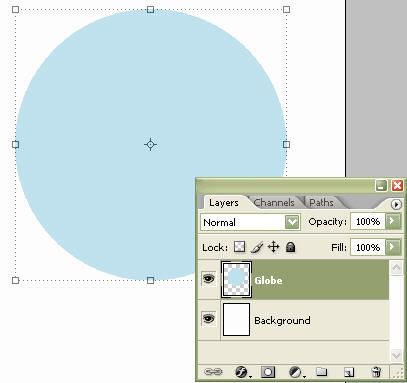
  • Select a pale blue color and fill the marquee with the Paint Bucket.
  • Name this new layer "Globe".


Step 3: Give your flare the polar effect
  • Create a new layer and use the Rectangular Marquee tool to drag around the area of the circle.
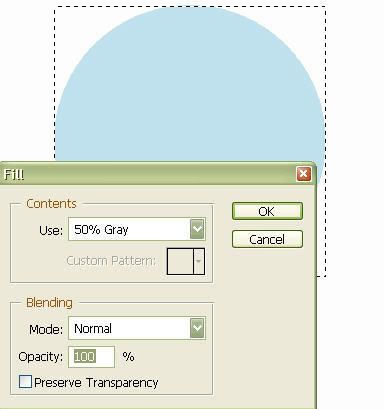
  • Choose Edit > Fill and then select "50% gray" from the pull-down menu.

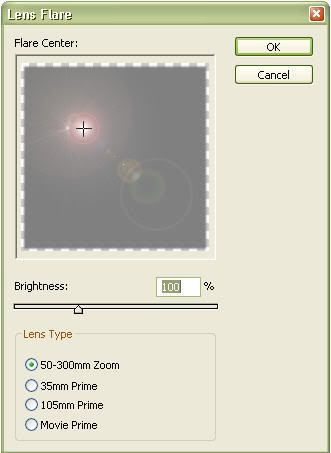
  • Now, to create the lens flare, choose Filter > Render > Lens Flare.
  • Position the flare in the upper left corner.
  • Set the Brightness to "100%" and Lens Type to "50-300mm Zoom".
  • Name this layer "Lens Flare".

Step 4: Flip the flare
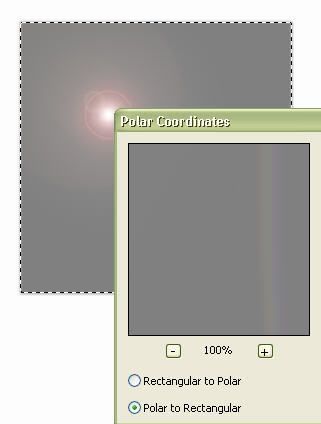
  • Still selecting layer "Lens Flare", choose Filter > Distort > Polar Coordinates.
  • Select the option "Polar to Rectangular" and click "OK".
  • Now select Image > Rotate Canvas > Flip Canvas Vertical.

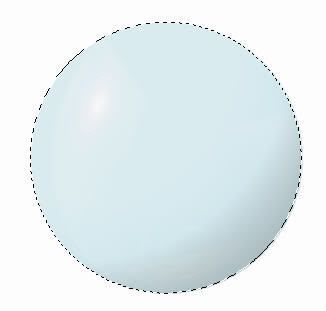
Step 5: Creating a shiny sphere
  • Still selecting layer "Lens Flare", choose Filter > Distort > Polar Coordinates.
  • Select the option "Rectangular to Polar" and click "OK".
  • Set this layer's blending mode to "Hard Light".
  • Ctrl + Click layers "Lens Flare" and "Globe" and position them to the top of the canvas.
Step 6: Give it a hazy effect
  • Create a new layer and name it "Hazy"
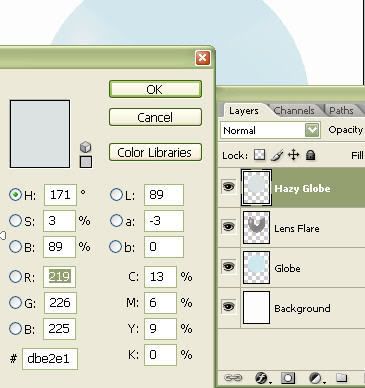
  • Click on the Color Option and enter R: 219, G: 226, B: 225 into the color picker.
  • Selecting the layer "Globe", create an ellipse using the Elliptical Marquee Tool with the previous dimensions. Place this new ellipse in the same position as the sphere on this layer.
  • Now, go back to layer "Hazy", fill the marquee selection with the color you have previously selected.
  • Change the Opacity of this layer to "24%" and make sure it's the topmost layer.

Step 7: Shading the sphere
  • Selecting the layer you just created, make an ellipse selection (explained in Step 6).
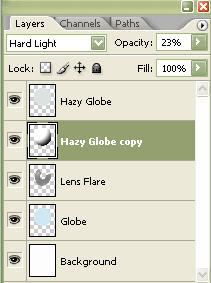
  • Create a new layer on top of the layer "Hazy" and name it "Hazy Globe copy".
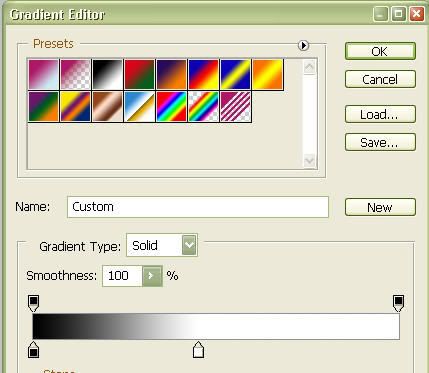
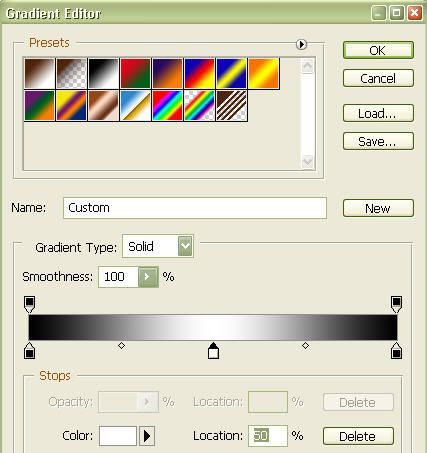
  • Now, choose the Gradient Tool and click on the swatch in the Options bar.
  • Choose the Black/White preset in the Gradient Editor and make adjustments as shown.


Step 8: Give your globe dimension
  • Check Reverse in the Options bar.
  • Click and drag from left of the middle towards the bottom right of the marquee selection.
  • Place this new layer below the layer "Hazy".
  • Change the blending mode of the layer to "Hard Light" and the Opacity to "23%".

Step 9: Adding your snow globe content
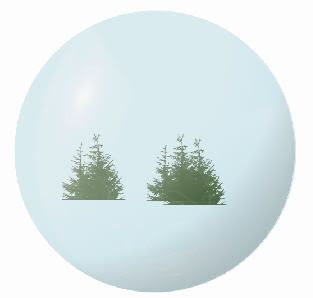
  • Time to add your own pictures/creations into the snow globe.
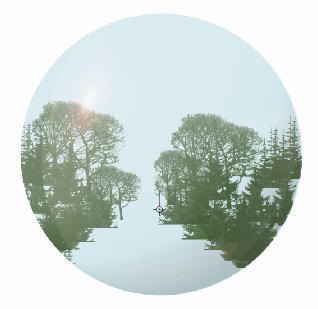
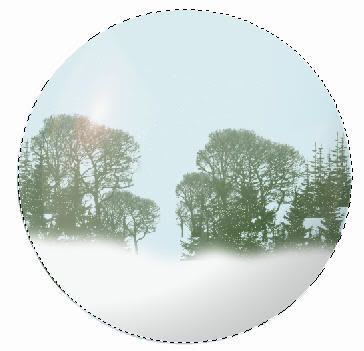
  • In the snow globe that I created, I created some variations of trees and brushed them into position.
  • I shan't go into too much detail since your contents would differ from mine. However, below are some screenshots for your reference.


Step 10: A light scattering of snow
  • Create a new layer and name it "Snow Trees".
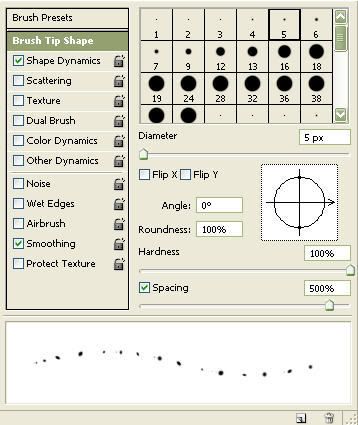
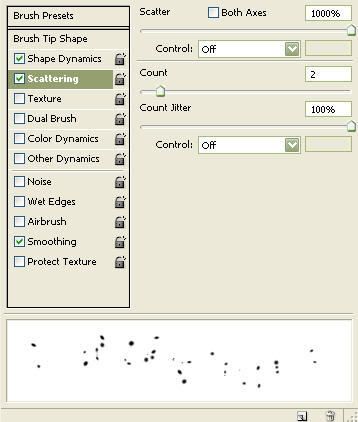
  • Select a round brush of size 5px and the following settings in the Brush Palette: Spacing of "500%", Maximum Count Jitter and Scatter.


  • Make sure your foreground color is "White" before painting over parts of the contents where you want a snow fall effect. In my case, I painted snow on the trees.
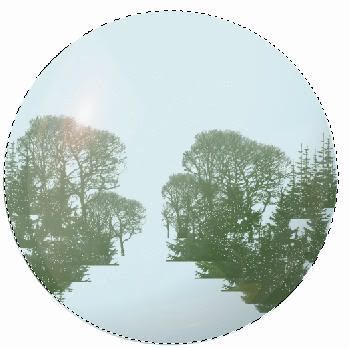
  • Always remember to make a marquee selection around the sphere before you paint so that your painting will only apply to the selection.

Step 11: Snowy outlook
  • Create a new layer and name it "Ground Snow".
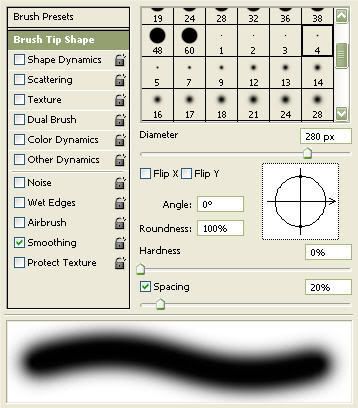
  • Select a soft round brush of size 280px, with the Scattering turned off in the Brush palette and reduce the Spacing.

  • Paint snow into the bottom of the trees or your content.

Step 12: Turn up the texture
  • Duplicate the "Ground Snow" layer and make sure this new layer is above the former.
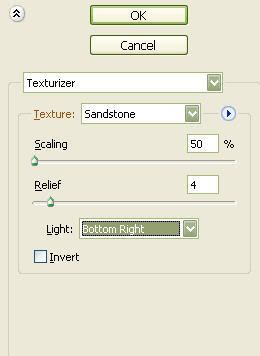
  • With the "Ground Snow Copy" selected, go to Filter > Texture > Texturizer. Choose a Texture of Sandstone, Scaling of 50%, Relief of 4 and Light of Bottom Right and click "OK".
Step 13: Snow Storm effect
  • Include this step if you like to add some snow storm effect into your snow globe.
  • Create a new layer and call it "Falling Snow".
  • Make the foreground color "White" and the background color "Black".
  • Now choose Filter > Render > Clouds.
  • Use the Rectangular Marquee Tool to select a small area of this where there is a lot of contrast between black and white.
  • Choose Select > Inverse and hit Delete to be left with a small section of clouds.
  • Now, select Edit > Free Transform and drag the handles so that the cloud selection fills the area of the globe again.
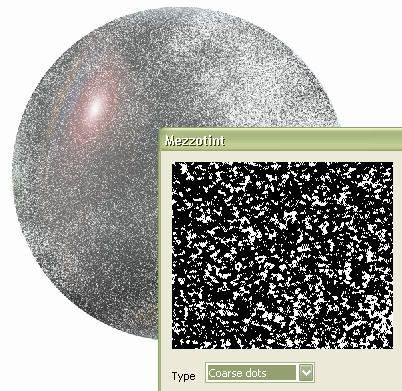
  • Choose Filter > Pixellate > Mezzotint and select "Coarse Dots" from the Type drop-down menu.
  • Using the Magic Wand Tool, click on an area of black to select it on the "Falling Snow" layer.
  • Choose Select > Similar for all areas of black to be selected as well.
  • Hit "Delete" to be left with white specles.
  • Reduce the opacity of this layer to "70%".

Step 14: Adjusting the snow storm
  • Choose the Eraser tool on a low "Hardness" setting and "50%" Opacity.
  • Rub away falling snow from the ground or any parts where you want less of the "Storm".
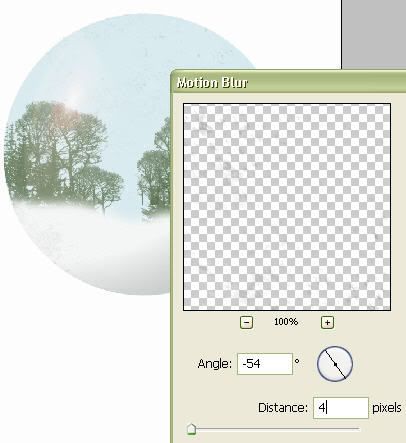
  • Choose Filter > Blur > Motion Blur and set Angle to "-54" and Distance to "4 px".


Step 15: Adding more content
  • In my case, I have added a house in the middle of the snow globe.
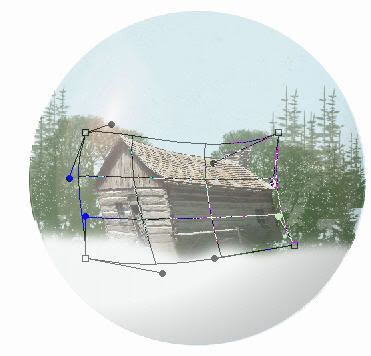
  • Since this is a sphere, we need to make some "Realistic Distortions" to the content.
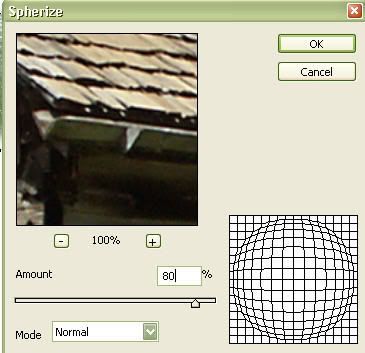
  • With an Elliptical marquee selected around the sphere and the new "House" layer selected, choose Filter > Distort > Spherize.
  • Reduce the Amount to 80% and click "OK" and warp the house to distort it further.
  • I have done the same with the picture of Mikki.

***We're almost there!***

Step 16: Place the globe on a stand
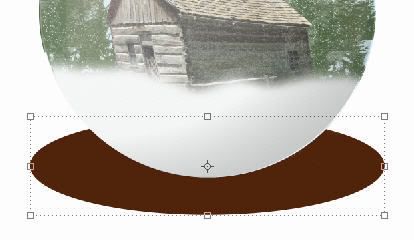
  • Create a layer called "Base Top" above the "Background" layer.
  • Pick the Elliptical Marquee tool and select "Fixed size" as the style with width 18cm and height 5cm.
  • Position the marquee as shown and fill it with "Brown".

Step 17: Build up the stand
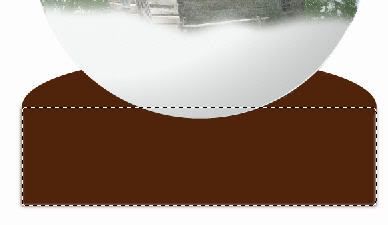
  • Create a new layer below the "Base Top" layer and name it "Base Middle".
  • Pick the Rectangular Marquee tool and select "Fixed size" as the style with width 18cm and height 5cm.
  • Position the marquee as shown and fill it with "Brown".
Step 18: Create the Base
  • Duplicate "Base Top" layer and name it "Base Bottom".
  • Position the Ellipse below the "Base Medium" layer.
Step 19: Adding layer style to base
  • Merge all 3 "Base" layers.
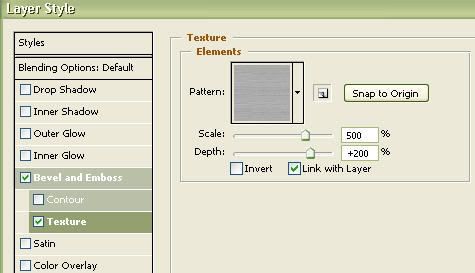
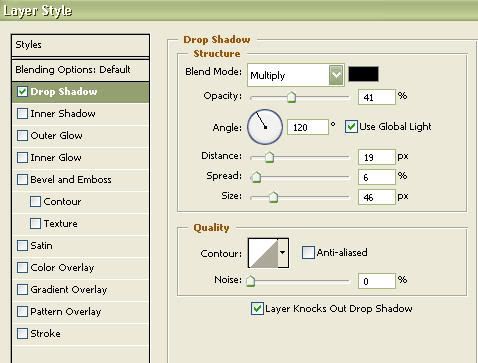
  • Add texture, drop shadow and gradient to the "Base" layers as shown.
Step 20: Add the mini base
  • Duplicate the "Base" layers and resize it to "65%" with fixed aspect.
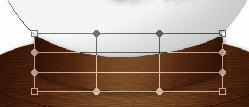
  • Choose Edit > Warp. Pull the corners round slightly so they curve round the globe.
  • Copy the layer style from "Base" layers and paste it to this new layer.

Step 21: Inscribe your globe
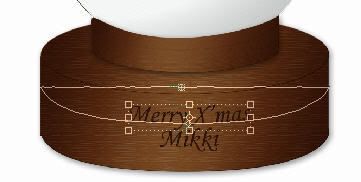
  • Choose the Freeform Pen tool. Select Paths and check Magnetic in the Options bar.
  • Go along the bottom edge of your base and double-click at the end.
  • Now, choose the Text tool. Set the color of the text to brownish gray, and pick a font.
  • With the Text tool selected, click the "Centre Text" option in the Options bar.
  • Hover mouse over the path until it changes, and then click to type your text.
  • When you are done typing, select the Move tool to move the text into the desired position.

Step 22: Give it the Engraved look
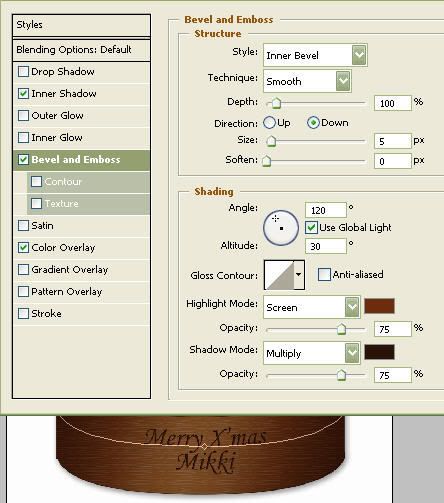
  • To achieve the engraved look, double-click on the Text layer and click on Inner Shadow in the Layer Style window.
  • Enter a Distance and Size of 1px. In Bevel and Emboss, change the Direction to Down, Size to 5px and Soften to 0px.
  • Finally, choose a highlight mode color of light brown similar to the one shown below.

***Your very own Snow Globe!***
Give yourself a tap on the shoulder for completing this tutorial. Give me your feedback and let me know if there are any specific Photoshop tips you would like to know.

Related Post: Photoshop: Create Your Own Weather - Part 1

Read More...

Friday, December 15, 2006

Photoshop: Create your own weather - Part 1

This marks the beginning of the "Create your own weather" series.

"Create your own weather" is a 4 part tutorial where I will share with you some of the techniques to transform a vanilla picture into have 4 contradistinctive demeanors. The series will attempt to re-create an array of nature's weather fronts and instantly change the mood of a picture's landscape - add a rainbow; capture a lightning when it strikes; portrait windy weather;
and perhaps a tornado.

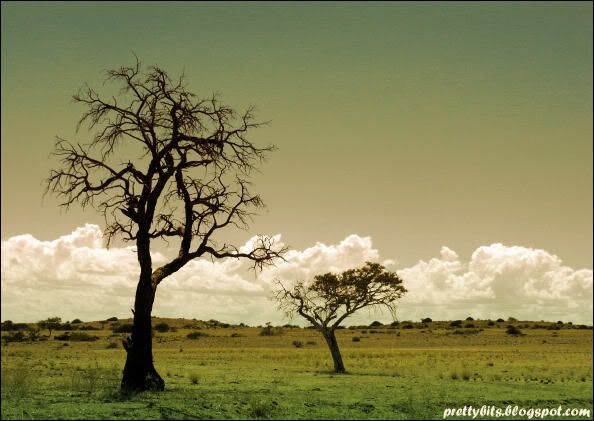
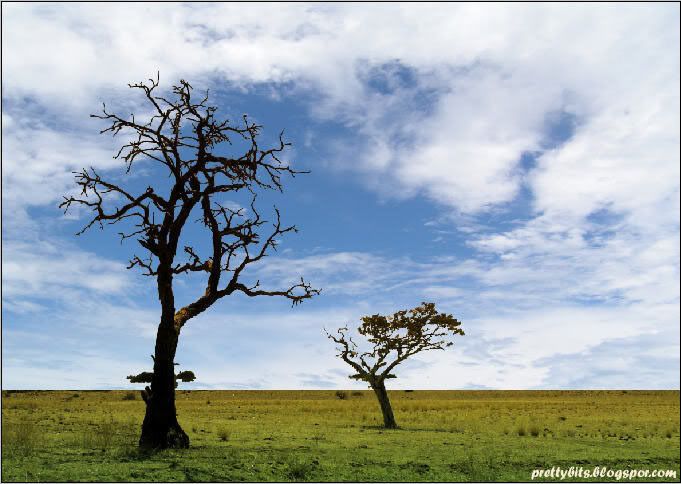
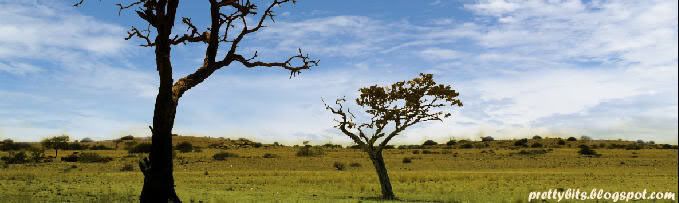
In part 1, we will look at how we can transform this...
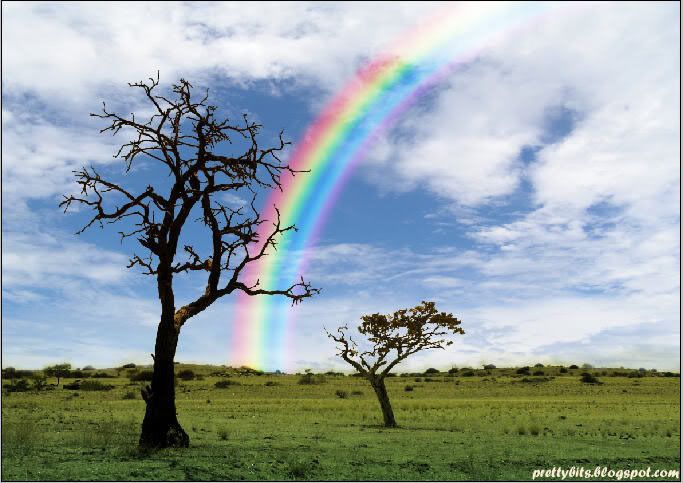
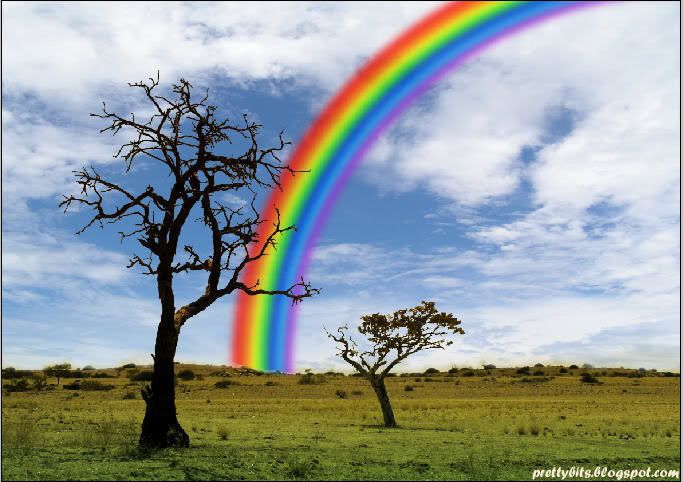
to this...
Personally, snapping a decent picture of a rainbow has never been an easy task for me. Each time I see a rainbow in the sky, I would either be without my camera or that the rainbow would be almost completely immersed and shielded by the clouds by the time I manage to pull my camera out of my bag without causing my make-up and ipod to fall out of the bag. After failed attempts to snap pictures of a nice rainbow, I decided that I shall try my luck at creating my own.

Follow this guide and you will have your own rainbow too!

Pictures used are obtained from Stock.Xchng. Program used: Photoshop CS2.

Step 1: Starting the rainbow

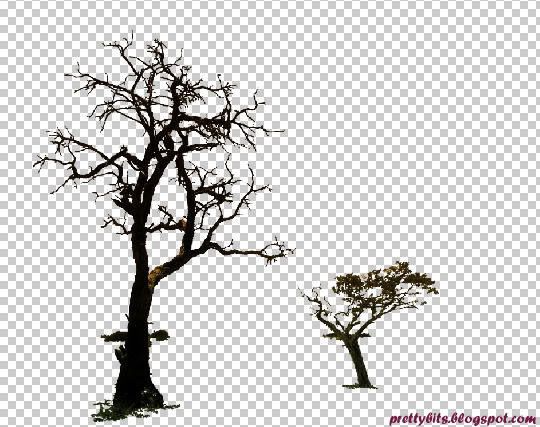
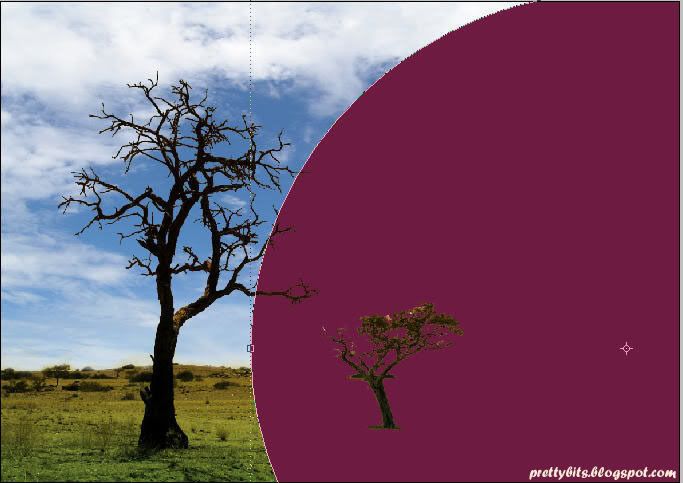
  • Grab the Magic Wand tool and select the big tree.
  • Zoom in on the big tree, holding down the SHIFT key, click on parts of the tree that was not selected by the Magic Wand Tool.
  • Still holding down the SHIFT key, repeat the process on the small tree.
  • When you have selected enough of the trees, right click and select Layer via Copy.
  • A new layer will be created with just the trees that you have selected.

Step 2: Re-arranging the trees layer
  • Drag this new layer to the top of the Layers palette, making sure that it is always the top-most layer.
  • Double click on this layer in the Layers palette and rename the layer to 'Trees'.
Step 3: Introducing the clouds
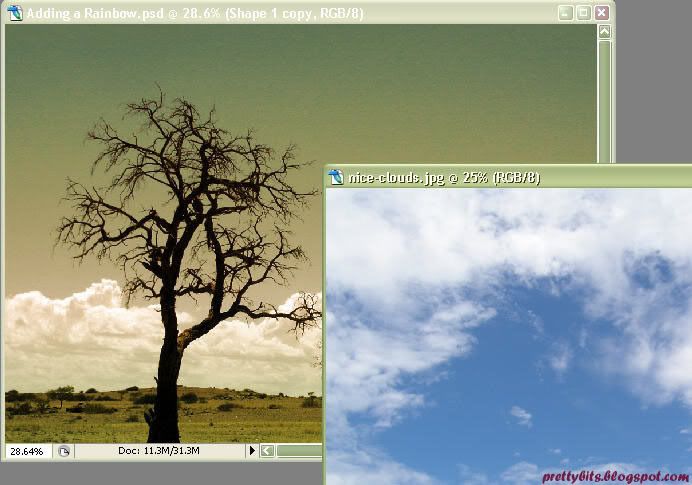
  • Choose a picture of the sky with nice clouds and open it in Photoshop.
  • Drag the clouds picture into the current composition of Background and 'Trees', making sure that that the clouds are positioned under the 'Trees' layer but above the 'Background' layer.
  • Transform and resize the clouds to be just above the height of the existing sky.
  • Name this layer 'Sky'.
Step 4: Add a Layer Mask
  • Click on 'Add Layer Mask' icon at the bottom of the Layers Palette and add a Layer Mask to 'Sky'.
  • Select the Brush tool with Black as your foreground color, paint out the sky over the ground.

Step 5: Stroke of a rainbow
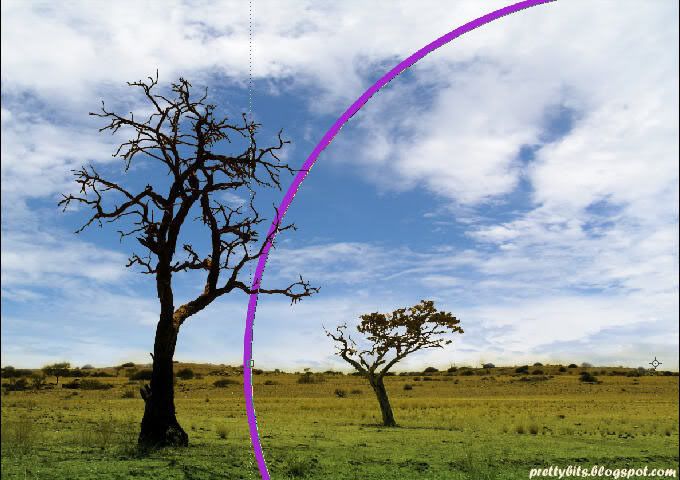
  • Grab the Ellipse tool from the toolbar and draw a large oval.
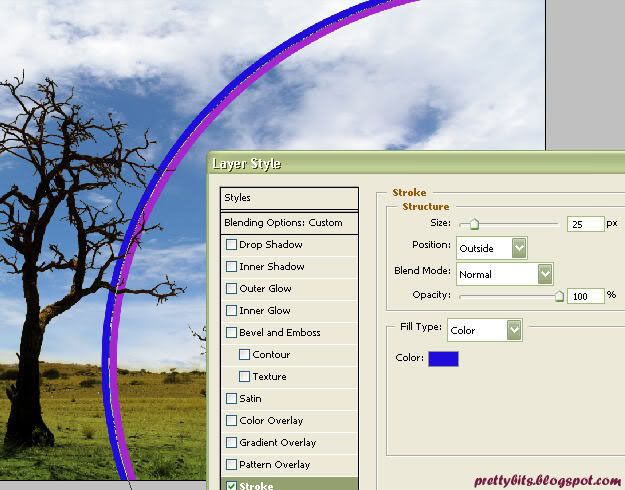
  • Now we need to add a layer style. Select Layer > Layer Style > Blending Option.
  • Change the Fill Opacity to 0%.
  • Click on the category Stroke and add a 25 pixel stroke to the ellipse. At the same time, change the color of the Stroke to 'Purple'.
  • Rename this layer to 'Purple'.

Step 6: Adding all 7 colors of the rainbow
  • Right click 'Purple' and choose Duplicate this layer.
  • Rename this new layer 'Blue'.
  • Selecting 'Blue', hit Ctrl+'T' and lock the transformation aspect ratio by clicking on the 'link' between the percentages.
  • Resize layer 'Blue' by changing the percentage to 102%.
  • Use method described in Step 5 to change the color of stroke to blue.
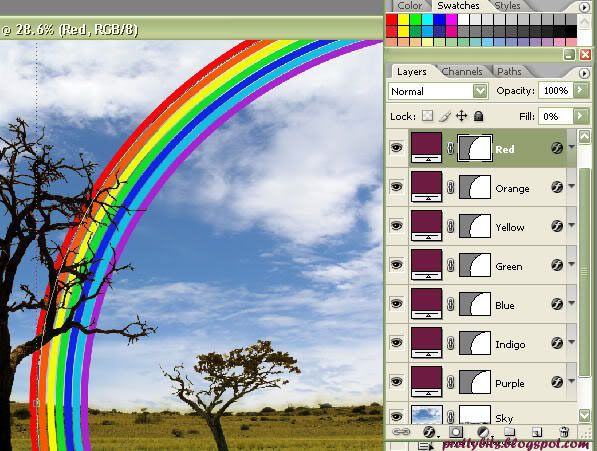
  • Now, do the same for all 5 other colors of the rainbow.
  • You should end up with this...
Step 7: Blending the colors of the rainbow
  • Now that we have all 7 colors of the rainbow, we just need to blend them all together to make it more realistic.
  • Merge all 7 rainbow color layers by holding down the Shift key and clicking on all 7 layers; right click and select Merge Layers.
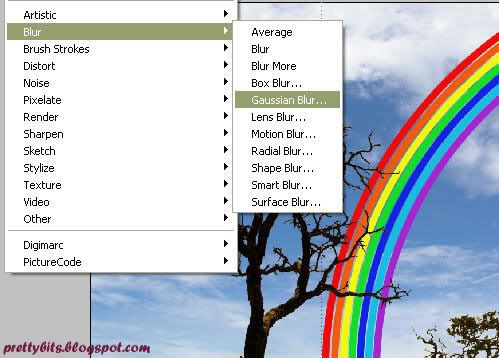
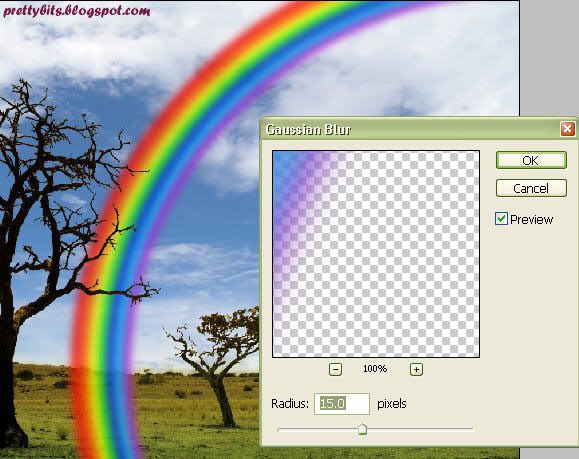
  • To blur the rainbow: Still selecting the newly merged rainbow layer, go to Filter > Blur > Gaussian Blur and add a 15 pixel blur to the image.

Step 8: Fitting the rainbow to the background
  • Use the Eraser tool to erase the section of the rainbow that is overlapping the grass.
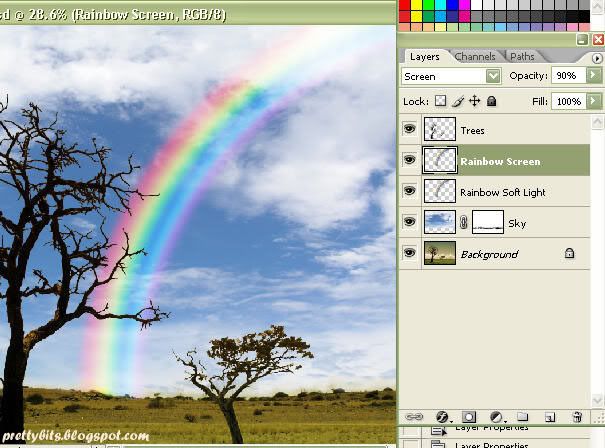
  • From the Layers palette, change the Blending mode to 'Soft Light' and Opacity to 50%.
  • Duplicate this layer and change the Blending mode to 'Screen' and Opacity to 90%.

Step 9: Correct the color of the grass
  • We're almost there!
  • Notice the color of the grass in the 'Background' layer looks somewhat sluggish against a rainbow and blue sky backdrop? Let's change that!
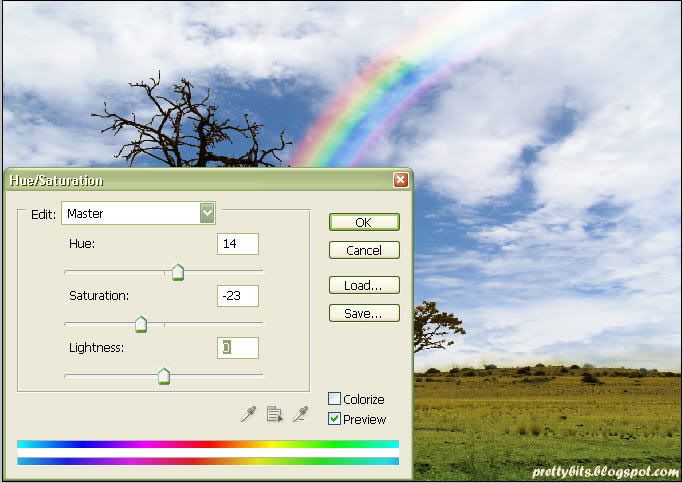
  • Select the 'Background' layer. Go to Image > Adjustments > Hue/Saturation and change the Hue/Saturation as shown....

Viola!!!!!! Here's your very own Rainbow Effect!!


I hope you enjoyed this little tutorial. Check back for more Weather Series.

Read More...

Wednesday, December 13, 2006

Slouching is GOOD for your back!

Now, sit up straight and pay attention!
Does that sound like what your mother probably told you a million times, as her mother told her: to sit up straight?

No, not that straight! Who do you think you are, a professional stuntman? You'll do your back an injury. At least, that's the latest word from the medical world.

Researchers have found that sitting in the 90-degree posture dictated by stern school teachers and parents does not spare you from back trouble later in life. It may actually exacerbate it. Scientists have recently found that sitting upright places needless strain on your back, provoking potentially chronic pain if you spend long hours sitting.

So, if you spent last night sprawled awkwardly on the sofa and you've woken up feeling stiff, then sitting up the way matron taught you may not dispel the aching. What you need is yet more sprawling backwards, tracing a generous angle of 135-degrees with your body and feet on the ground: think of it as the chiropractic equivalent of the hair-of-the-dog remedy drinkers use to chase away a hangover.

Stiffening your spine as a mark of good breeding might be doing you more harm than good!

And if sitting up straight is bad for you, who still dares to say that eating up all your greens will make you strong? Or that an apple a day will keep the doctor away?

Now, try the new *revolutionary* sitting position..

Ah... that's more comfortable. Just one problem with typing while sprawled backwards like a human deckchair: it's sometimes tricky to reach all the keys on the computer keyboard. This may pose a serious problem if you are set on advocating this new posture at work; of course that is if your boss doesn't trim your bonus or increment and brand you as a "slacker".

Well, I've got a work-around for this:

  1. Adjust the height of the chair to as high as possible (always ensuring that your feet touch the ground)
  2. Take a seat and ensure you tuck your butt all the way into the back of the chair (we tend to unconsciously balance our butt-cheeks along the edge of the seat, adding additional stress on the lower back).
  3. Now, slide yourself (together with the chair) towards the desk, stopping once your chest touches the tip of the desk. Be sure not to attempt to sandwich yourself too tightly between the desk and chair. Prolonged "squashing" may result in unwanted injury to boobs, especially the surgically refined ones.
  4. Adjust the angle of your backrest to approximately 120-degree. Notice I refer the new-found posture to 120-degree instead of 135-degree? I just thought that 135-degree might not be realistic for the working environment. Of course, when you're at the comfort of your crib, by all means, go for the recommended 135-degree.
  5. With the new-found 120-degree posture, you should be able to use your keyboard effectively without exhibiting any sign of sprawling (they're all hidden under the desk) and at the same time, reduce the risk of chronic back pain 10 years later. At the end of the day, it all depends on how anal and sticky your boss is about maintaining office image.
Read the full article here.

So, next time your mother, teacher or boss bawls at you when you sprawl on the sofa/chair, refer them to this article and tell them, that it's SCIENTIFICALLY proven to be the ideal sitting position for maintaining a healthy spine.

The first people to read this post has got to be my parents! They have been nagging about my "bummer" posture for the last decade!! Haha..

Read More...

Sunday, December 10, 2006

X'mas in Aberdeen

15 Days to Christmas!

Every city in the world has its own way of celebrating X'mas and spreading the X'mas cheer. Here in Aberdeen, X'mas is celebrated by almost everyone. This has got to be the only time of the year where you have to jostle your way through the masses along Union Street.

I too, made my way to town yesterday and had an absolutely smashing X'massy time there!

Trooping along Union Street, we came upon a cute little red "Santa train" “choo-chooing” on the road in the opposite direction. Merry looking shoppers were being shuttled along, waving happily from their vantage points, glad to be able to put their tired feet up for a change. . Following a short distance behind were three limousines in succession, in the colours of pretty pink, snowy white and lemony lime. Talk about shopping in style! I know what my next mode of shopping transport’s gonna be!! And in pretty pink too, no less! Along the way, we were passed by Santa, Bozo the clown and….. a pink elephant(!)….. Oh er, sorry, the last one was my imagination, must be the freezing cold…..

Castlegate loomed at the end of Union Street, so named because of the looming castle (duh!). A small but cosy traditional German X'mas Market set up shop there. The aroma of mouth-watering food greeted the cold, weary shoppers, with stalls ranging from traditional German sausages, beer, hot malted wine with shots of rum, Asian cuisine, grills, Paella from Spain and haribo sweets for the sweety-toothed…. Yummy! Don’t know about you, but food seems to taste especially good when you’re outdoors , in freezing winter. Souvenirs in all variety, shapes, and sizes from different parts of the world were on display and for sale, of course, as well. Didn't manage to snap any pictures cause my Ixus battery chose to die on me at the most inopportune time, thus giving me another convenient excuse to go back to the markets (no complaints from me of course!) I’ll try to take some smashing pics this week! Overall, had a fantabulous time at the Market, eating and drinking and making merry, with “Jingle Bells”, “White X’mas and “Rudolph the Red-nosed Reindeer” chiming in the background. Best part of all, it was really COLD!! No way you're not gonna be able to enjoy this market in hot, humid weather (like in Singapore). Now that’s real X’mas for you!! Heehee. *hint hint to friends to come spend X'mas with me*

Only thing missing was the snow…….


Having been thoroughly filled with the X'mas spirit, I came home and decided that we should have a right go at assembling the X'mas tree that we bought a couple of days back. This house sure could do with some sprucing up! Santa’s gonna want to visit and never leave! Ho! Ho! Ho!

As I had never assembled a X'mas tree in my entire life (can you believe that???? Shocking!!!) , I had absolutely no idea what I was in for. For those of you who are in the unbelievable position of never having put up a X'mas tree as well (simply placing decorations on the tree doesn't count!), and are about to purchase and assemble one on your own, please make sure you get some professional and trained help!! It took me almost 2 whole hours to assemble and decorate the entire tree! MAN, I was certain I had never worked so hard in my life!!! Even my 3 hour long gym sessions (complete with rigorous body-combat and back-breaking body pump classes back-to-back, no less), seemed like a walk in the park compared to this.

I was literally grumbling throughout the entire process (hmmm, not really in keeping with the X’mas spirit, I would say) and lamented my decision to get the tree in the first place. But, once everything was done, I laid back on the couch and admired my masterpiece, satisfaction amidst all that dripping sweat, all that hard work miraculously forgotten…. Merry Christmas, indeed!


DO NOT REMIND ME ABOUT DISASSEMBLING THE TREE AFTER X'MAS!!!

Read More...

Friday, December 8, 2006

I'm on FIRE!

Gosh! I think I'm nuts!!! Guess what? I just created another blog - Mysteria Magica in the last 5 hours. That blog's gonna be a team blog with myself and G3 as main authors, we might invite guest writers from time to time. Not too sure what it's focus would be on yet. Probably fashion, shopping and celebs.

Yawn... Its 4.42am now. I'm gonna hit the sack. More updates tomorrow.

Nitez..

Read More...

Thursday, December 7, 2006

Finally, its DONE!

Finally, the blog that I've been secretly dreaming about is coming to life. This "project" sure took it's own sweet time to take shape. Many of you might think - "why am I only getting hooked onto this craze of blogging when 60 million others have been blogging since 2003, and some have even made millions out of it". Damn! I should have started then.. would have been a millionaire by now . *grins*

Well, all I have to say is, it's better now than never! 3 years from now, there might be others just like me - sitting in front of his/her laptop starting up a brand new blog.

Maybe I should try to redeem myself - being a self-declared "techie", many would have thought that I should have been a seasoned blogger by now with a fanciful blogsite comprising of the latest hacks. Sigh. Life's a bitch when you envisage yourself to be a high-flyer straight after university. In Singapore (where I came from), to be a high-flyer, you need to put in the hours! And by the hours, I mean, dedicating at least 15 hours a day to work. Sometimes, that might not even be sufficient. To succeed faster than your peers, you have to be "visible" in the company, by demonstrating your leadership skills outside of work. This would mean that you would need to take part in Work Extra Curricular Activities(ECA) like organizing outdoor activities for staff, company annual dinners, and parties. More often than not, these ECAs will take up most of the weekends (if you're not already bogged down by work that spilt over from the weekdays).

Well, that's all in the past now that I've moved to the United Kingdom - Aberdeen to be exact, and that I've decided to take a break from work to live life the way life is meant to be lived.


Just so you know, this blog was in the works for couple of weeks. Took a lot of pain to re-code a 3 column template from Blogger to Blogger Beta. Thank God for the 2 most wonderful Blogger experts I found - Hans and Ramani.
Without them, you would probably just see a blog with the same old common 2 column template and default Blogger Template styles.

Haven't really decided on what specific topics I should blog about. There are so many things that I would love to write about. But, what matters most is what my readers would like to read about. I will set up a poll soon for you to cast your votes on the topics that you would love to read about.

Alrighty, I'm gonna sign off for now. Thanks for patronizing my blog. Do check back in soon.

Ciao~

Read More...

Creative Commons License
Copyright © 2006 http://prettybits.blogspot.com. All rights reserved.